 Jetson Nano
 Installing Docker on Raspberry Pi/Jetson Nano in 2026
Docker is a popular platform for developing, shipping, and running applications. Docker helps you separate your applications from infrastructure so you can deliver software quickly. With Docker, you don’t need to worry about application compatibility with the operating system or missing library files, making it perfect for use on single-board computers. This article covers the universal Docker installation method, tested successfully on both Raspberry Pi and Jetson Nano.
Step 1: Update apt repository
sudo apt-get -y update && sudo apt-get -y upgradeStep 2: Download and run the official script
curl -s https://get.docker.com | bashSuccessful installation looks like this:
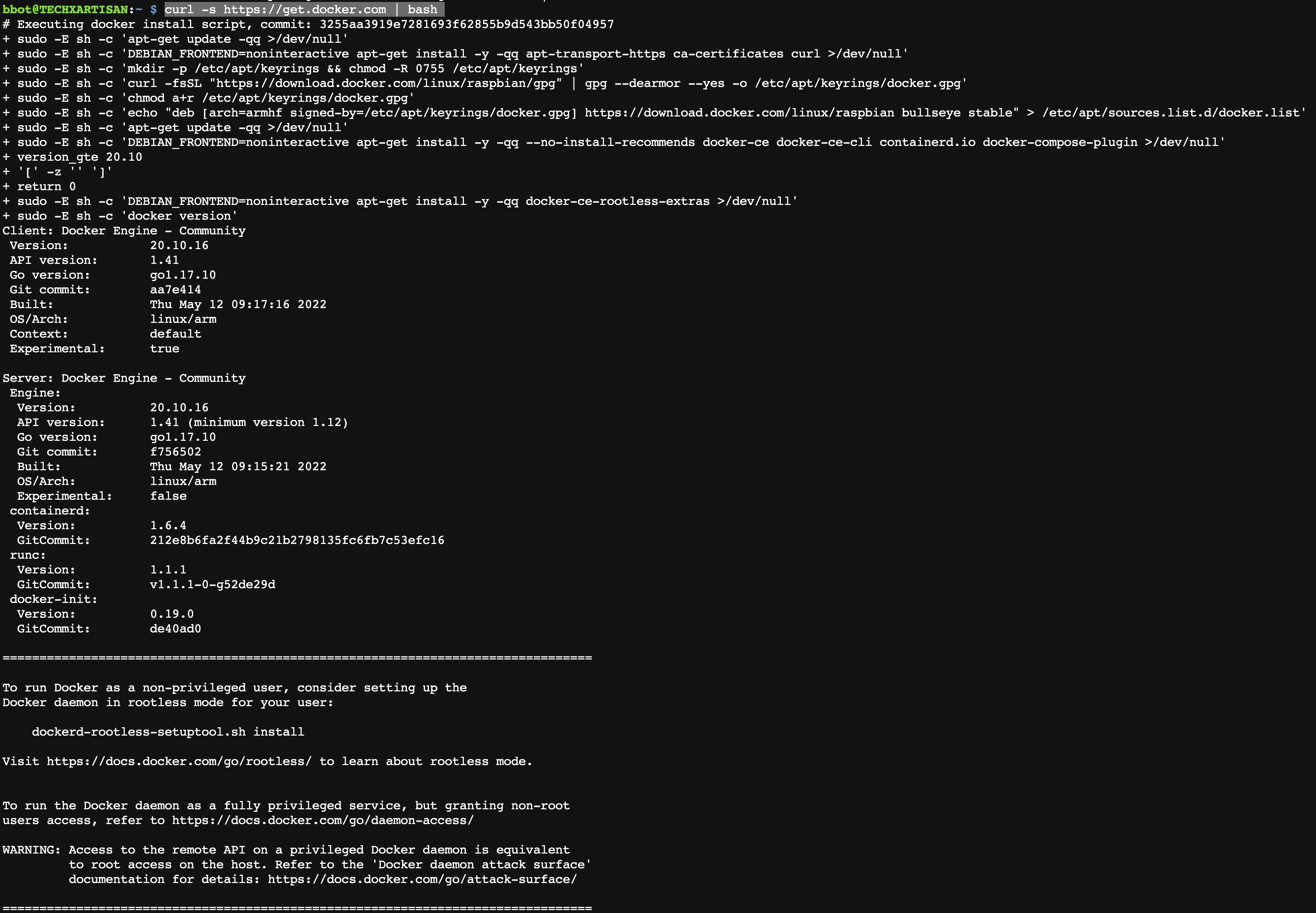
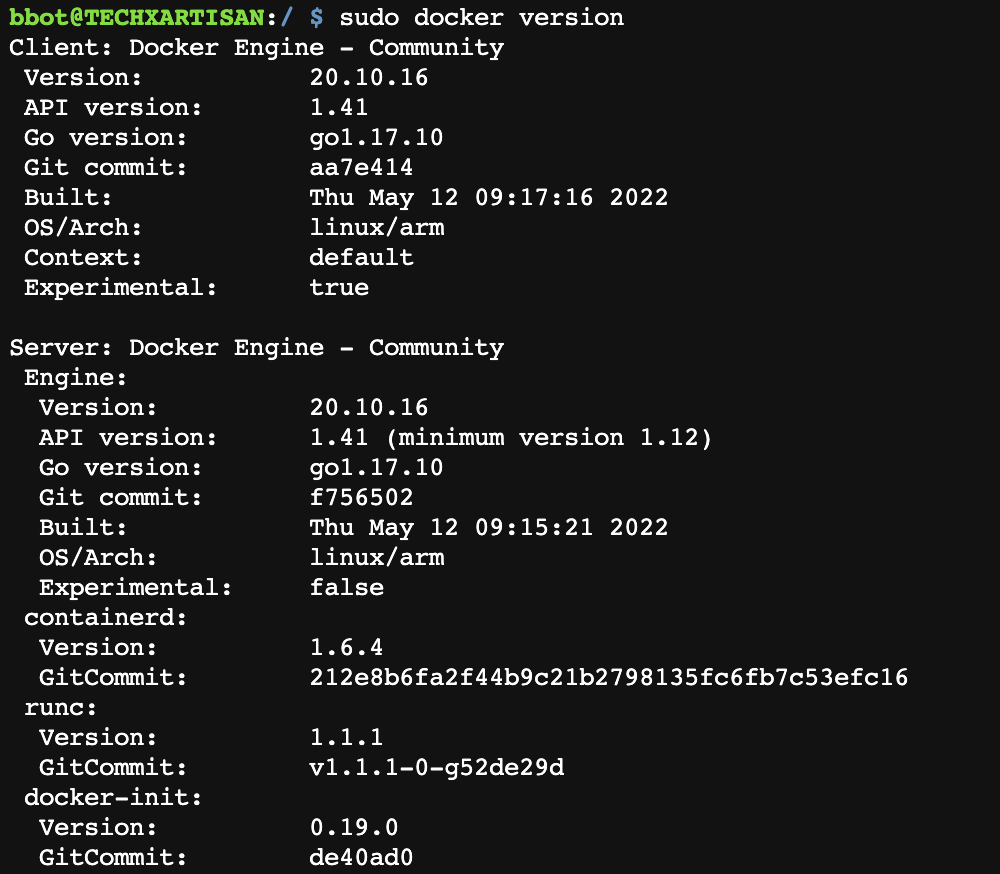
Step 3: Check Docker version
sudo docker versionIf installed correctly, it should look like this:
 Run
Run docker info for more detailed system information
sudo docker infoStep 4: Set Docker to start on boot and start it
sudo systemctl enable docker
sudo systemctl start docker
Check if it’s running successfully
sudo docker psSuccess looks like this:

Step 5: Download hello-world from Docker Hub to test
sudo docker pull hello-worldSuccess looks like this:
 If you see this message: “Error response from daemon: toomanyrequests: You have reached your pull rate limit. You may increase the limit by authenticating and upgrading: https://www.docker.com/increase-rate-limit”, you can try registering an account on Docker Hub, then log in and pull again, because Docker Hub now limits the frequency of anonymous pulls.
sudo docker loginSuccessful login looks like this:

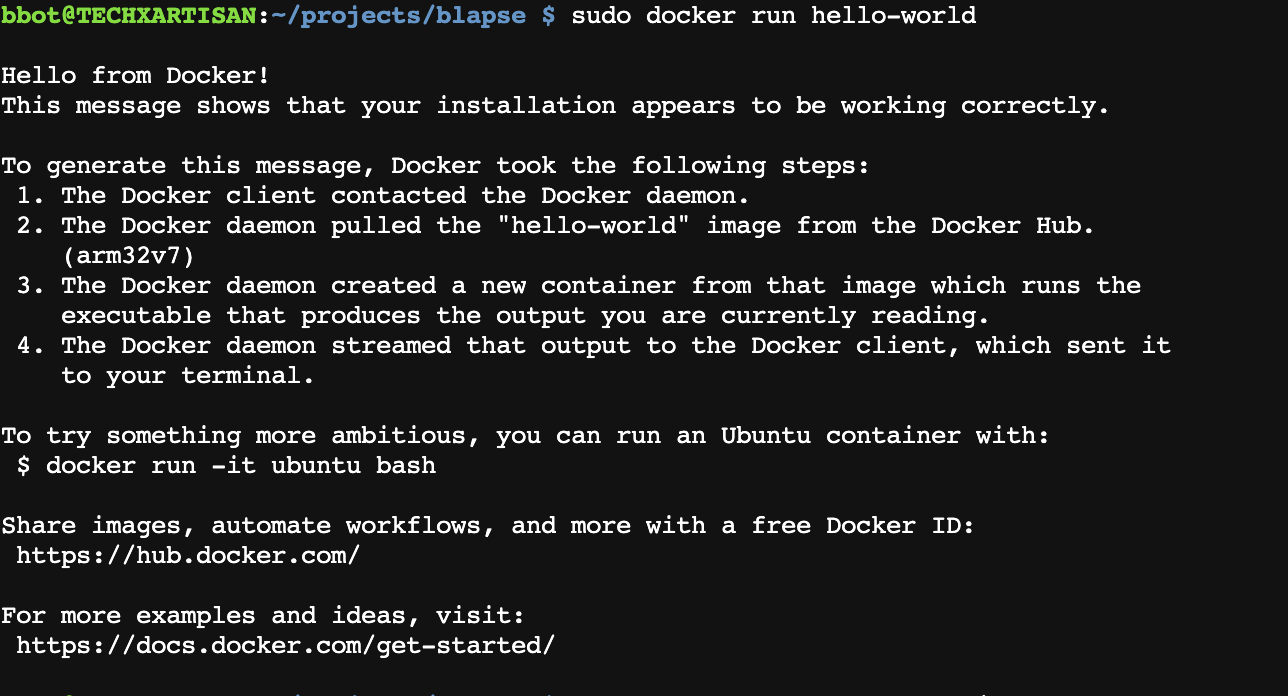
Step 6: Run hello-world
sudo docker run hello-worldSuccessful execution looks like this:
 Check if hello-world is in our image list
sudo docker images
Step 7: Clean up hello-world
Although this hello-world is only a few KB, I’ll delete it for the sake of cleanliness
sudo docker image rm --force 1ec996c686eb Check images again

Installation Successful!
Next, let’s dive into some common Docker concepts and commands to help you better use Docker on Raspberry Pi and Jetson Nano.
Difference Between Docker and Docker Compose
Many beginners confuse Docker and Docker Compose. Simply put:
- Docker: A containerization platform for creating, running, and managing individual containers. You start containers with the
docker runcommand and configure port mappings, environment variables, etc. through command-line arguments. - Docker Compose: A tool for defining and running multi-container Docker applications. Configure all your application’s services through a YAML file (
docker-compose.yml), then start all services with a single command.
When you need to run multiple services on your device (such as a database, web server, and message queue simultaneously), Docker Compose can greatly simplify your workflow.
Install Docker Compose:
sudo apt-get install -y docker-compose-pluginCommon Docker Commands Quick Reference
Here are the most common Docker commands used daily:
| Command | Description | Example |
|---|---|---|
docker run | Run a container | docker run -d -p 8080:80 nginx |
docker ps | View running containers | docker ps -a (including stopped) |
docker stop | Stop a container | docker stop container_id |
docker rm | Remove a container | docker rm container_id |
docker images | List local images | docker images -a |
docker logs | View container logs | docker logs -f container_id |
docker exec | Execute commands in a running container | docker exec -it container_id bash |
docker pull | Download an image | docker pull ubuntu:latest |
A typical workflow:
# Start an nginx container, run in background, map port 8080
sudo docker run -d --name my-nginx -p 8080:80 nginx

# View running containers
sudo docker ps

# View container logs
sudo docker logs my-nginx

# Stop and remove container
sudo docker stop my-nginx
sudo docker rm my-nginx
ARM Architecture Special Notes
Both Raspberry Pi and Jetson Nano use ARM architecture processors, different from common x86 (Intel/AMD) processors. You need to pay attention when selecting Docker images:
- Raspberry Pi (32-bit): Use images with
arm32v7/prefix, e.g.,arm32v7/nginx - Raspberry Pi 4 (64-bit OS) and Jetson Nano: Use images with
arm64v8/prefix, e.g.,arm64v8/nginx - Many official images now support multi-architecture and will automatically detect your platform and pull the corresponding version, such as
nginx,python,node, etc.
Check current system architecture:
uname -m
# Output aarch64 means 64-bit ARM, armv7l means 32-bit ARM
To find images that support ARM architecture, look for the “ARM” label when searching on Docker Hub.
Common Problem Solving
Problem 1: permission denied
If you need to add sudo every time you run docker commands, it’s very inconvenient. The solution is to add the current user to the docker user group:
# Create docker user group (usually automatically created during installation)
sudo groupadd docker

# Add current user to docker group
sudo usermod -aG docker $USER

# Re-login or run the following command to make group permissions effective
newgrp docker

# Test if it works (without sudo)
docker run hello-world
Problem 2: Docker pull speed is too slow
Since Docker Hub servers are overseas, users in China may experience slow image pull speeds. You can configure a mirror accelerator:
# Create or edit daemon.json configuration file
sudo mkdir -p /etc/docker
sudo tee /etc/docker/daemon.json <<EOF
{
  "registry-mirrors": [
    "https://mirror.ccs.tencentyun.com",
    "https://docker.mirrors.ustc.edu.cn"
  ]
}
EOF

# Restart docker service
sudo systemctl daemon-reload
sudo systemctl restart docker
Problem 3: Container time is incorrect
ARM devices sometimes have issues where container time doesn’t match the host machine. You can mount the local timezone file:
docker run -v /etc/localtime:/etc/localtime:ro -d nginxA Simple docker-compose.yml Example
Below is an example of using Docker Compose to set up a simple web service, including an nginx web server and a Redis cache service:
version: '3'
services:
  web:
    image: nginx:latest
    ports:
      - "8080:80"
    volumes:
      - ./html:/usr/share/nginx/html
    restart: always

  redis:
    image: redis:alpine
    ports:
      - "6379:6379"
    restart: always
Create an html folder and put an index.html file in it:
<!DOCTYPE html>
<html>
<head><title>Hello Docker</title></head>
<body><h1>Hello from Docker on ARM!</h1></body>
</html>
Then start all services:
docker-compose up -dCheck running status:
docker-compose psStop all services:
docker-compose downDocker Compose is very suitable for deploying multi-service applications on embedded devices. You can manage all dependencies and configurations through a single file. I hope this tutorial helps you better use Docker on Raspberry Pi and Jetson Nano!